

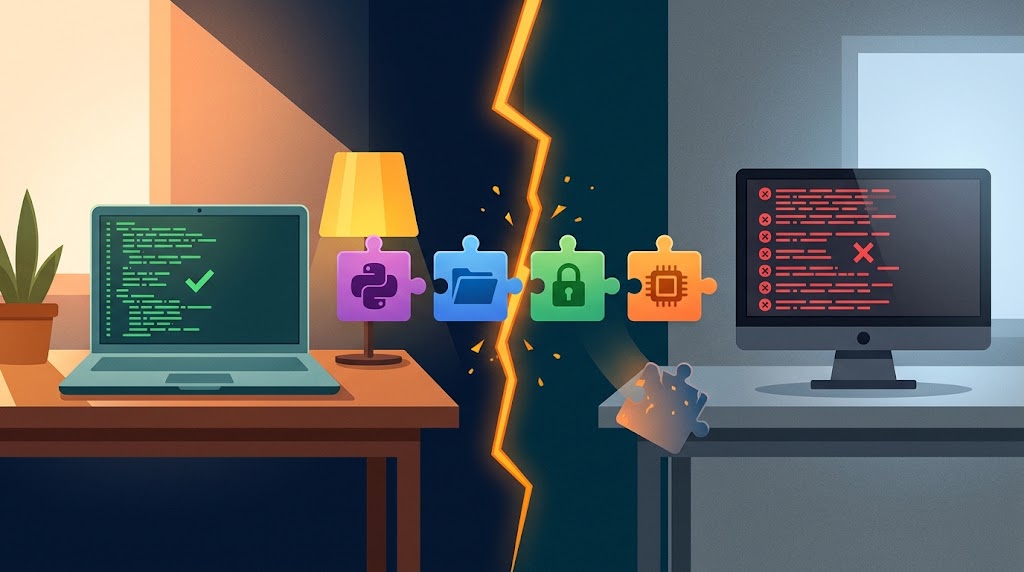
You have spent hours getting a programme right. The output is correct, the errors are gone, and you are ready to hand it in.
Then it lands on another computer and falls over. A library is missing, a file cannot be found, or it runs but the results look wrong.
You haven’t changed a single line. So what happened?
Here is the short answer: the code didn’t break; the conditions around it changed. The useful question now is which condition changed, and how can you find it without disturbing the parts that already work?
The environment is part of the programme
Picture a small Python tool that reads a spreadsheet, does some calculations and writes a report. On your Windows laptop it works because Python is installed, the right libraries are present and the spreadsheet sits exactly where the code expects it.
Move it to a university machine and any of those things can differ. Together they form the execution environment: the operating system, the interpreter, the dependencies, the configuration, the file permissions and the hardware.
A clean run on one machine proves the programme works under those conditions. It tells you very little about any other.
The usual suspects
Most “works on my machine” failures come from a short list.
Missing packages. You see ModuleNotFoundError: No module named 'pandas' and start doubting your import line. Usually the active Python simply cannot see the package. One computer can hold several Python installations and virtual environments, each with its own set of packages.
Version gaps. A programme written using Python 3.10 or later might use structural pattern matching with match and case. Run that code on Python 3.9 and the interpreter will reject the syntax. Both computers have Python installed, but the older version cannot understand that feature.
File paths. A path such as C:\Users\you\data.csv means nothing on Linux. The file exists, just not where the code is looking.
Permissions and hardware. A folder you can write to at home may be read-only at university. A script chewing through thousands of records can be fine on 16 GB of RAM and crawl on 4 GB.
From the outside these failures look alike. The fixes are completely different.
Three questions that sort almost any failure
Before you edit a single line, ask Where, What and Who.
Where is the programme looking? That covers file paths and the working directory.
What is it using? That covers the interpreter, packages and their versions.
Who is it running as? That covers permissions, user accounts and environment variables.
The error message usually tells you where to start. A ModuleNotFoundError points to What. A FileNotFoundError points to Where. A PermissionError points to Who.
This distinction matters in assessed programming work as well. When students look for best computer science coursework help, the underlying challenge is often not simply getting a programme to run. They need to understand why it behaves as it does, which conditions affect its output and how to show that their solution works reliably.
Run a five-minute environment check
Start by finding out what the failing machine is really running:
python --version
python -m pip show pandas
python -c "import sys; print(sys.executable)"
The last line matters more than it looks. It prints the exact interpreter in use, which often explains why a package you installed yesterday still isn’t found.
If the package is missing, install it with that same interpreter: python -m pip install pandas. Then rerun with the original input file. Nothing in the source changed. You found a missing requirement and fixed it directly.
Two traps almost nobody warns you about
Case sensitivity. Windows treats Data.csv and data.csv as the same file. Linux does not. Code that opens data.csv happily on your laptop can fail on a Linux server because the file is actually named Data.csv.
Line endings. Text files use different conventions. Windows traditionally uses CRLF (\r\n), while Linux and other Unix-like systems generally use LF (\n). A shell script created on Windows and run on Linux can produce errors that are hard to recognise at first. Most code editors let you change the format.
Both are quick to check, and both are easy to miss because nothing looks wrong on screen.
The clean-room test
Here is the habit that catches most problems before anyone else does. Create a brand new virtual environment, install only what your project needs, and run it from a fresh folder.
To build the requirements file, activate the project’s virtual environment first, then run python -m pip freeze > requirements.txt. Inside that environment, the command records only the project’s packages and versions, not unrelated libraries from your main Python installation. Note the Python version separately.
If the project fails in a clean environment, your notes are incomplete. Better to find that out on a Tuesday afternoon than the night before a deadline.
Habits worth keeping
- Keep a requirements file with exact versions.
- Use a virtual environment for every project.
- Build paths with
pathlibinstead of hard-coding them. - Keep passwords and addresses in environment variables, not in the code.
- Test on a second machine before calling it finished.
Add a short README with a setup checklist: Python version, dependencies, input file locations, settings. It saves hours when someone else needs to run your work.
Mistakes that waste your time
Changing everything at once. Updating Python, reinstalling packages and editing code together might fix it, but you won’t know which change did.
Assuming the newest version is best. Upgrades can alter behaviour or clash with other packages. Check what the project needs first.
Treating every error as a coding mistake. Rewriting a working function will not cure a permissions problem. Read the whole error message.
Testing only on your own machine. A programme can pass every test at home and still depend on settings that exist nowhere else.
What to take away
Software depends on its surroundings as much as on its source code. Operating system, dependencies, runtime, configuration and hardware all shape what happens when you press run.
So when something works in one place and fails in another, resist the urge to rewrite. Ask Where, What and Who. Read the error closely. Change one thing at a time.
That approach does more than fix today’s bug. It develops the habit of thinking beyond the computer on which the code was written. Reliable software is not simply software that runs successfully once. Its requirements are understood, its limitations are recognised and its behaviour can be reproduced across the environments it is designed to support.